Cloud browser: marketplaces 24/7
We run a real browser for you on our servers. Log in once to Dubizzle or any site and your agent replies even when your computer is off.
- Your marketplace username and password (and your phone, if it sends a code)
- A cloud browser left on your plan (see Plans)
How it works
Step by step
- 1
Create a cloud browser
Open Connect apps → Dubizzle & other websites → In the cloud, 24/7 and click New cloud browser. Give it a name, the site’s address, and the agent that replies. Click Create and open.
talknaut.com/app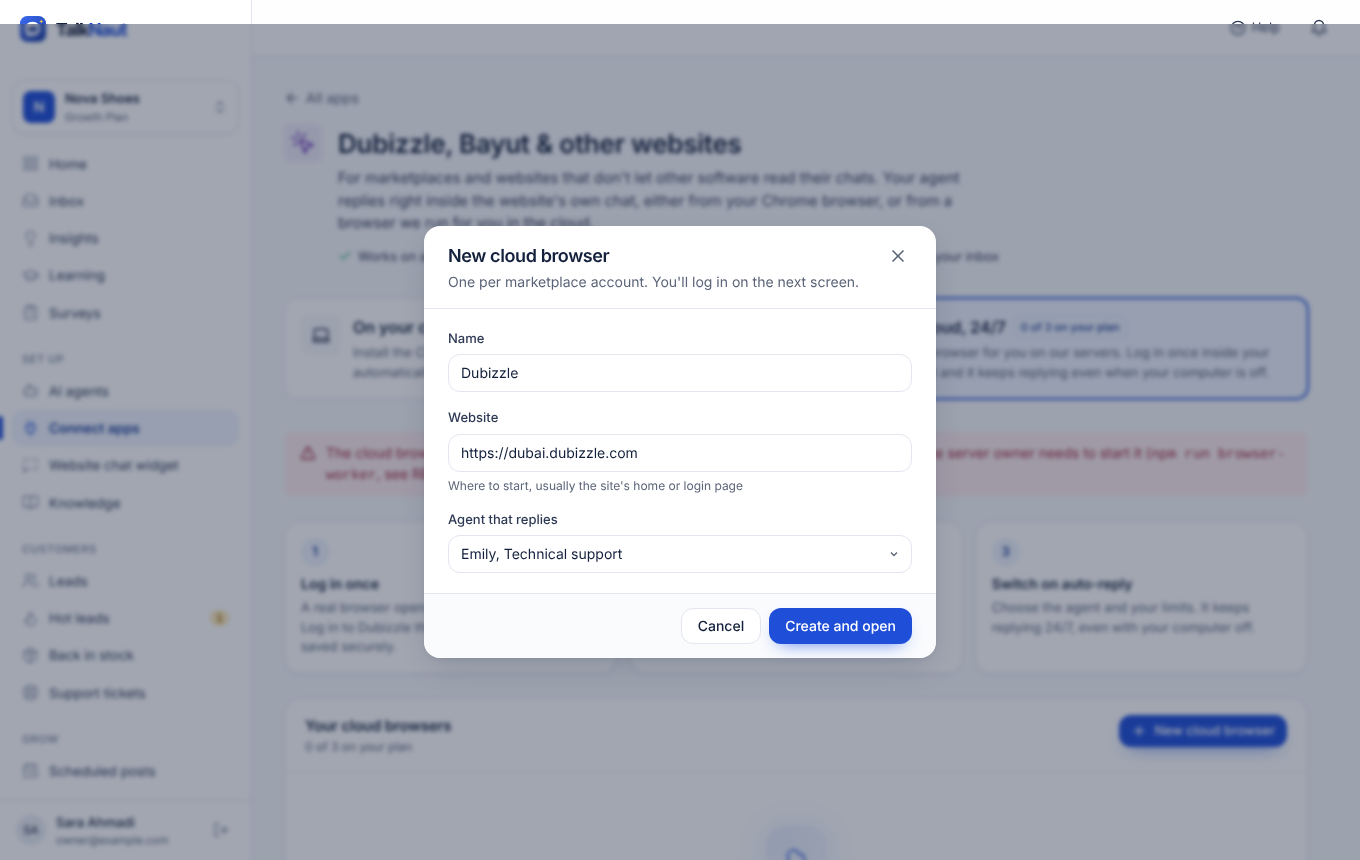
- 2
Log in inside the dashboard
You see the website live. Click and type as if it were your own browser and log in. Codes sent to your phone work normally. Then press Save login so it stays logged in.
- 3
Press “Set up with AI”
The AI goes to your messages page and learns where the chat list, messages, text box and send button are. When it’s on the right page, press Keep this page. From then on it always comes back to that page by itself if it drifts away.
- 4
Check, test, switch on
Press Check setup and Test typing (it types without sending). When both are green, press Turn on auto-reply and confirm.
Keep the account safe
Common problems
Something not working? Find your message below.
The site shows a CAPTCHA or “Are you a robot?”
It keeps going to other pages or tabs
It got logged out
“The cloud browser service isn’t running”
docker compose up -d browser-worker). If it says all browsers are busy, raise BROWSER_MAX_SESSIONS.