Start here: your first 15 minutes
Create your account, describe your business, get your first agent answering, and know where everything is.
- A computer (setup is easiest on a big screen; you can check chats on your phone later)
- Your website address or a price list, so the agent has something to learn from
- About 15 minutes
How TalkNaut works
TalkNaut gives your business a small team of AI agents. Each agent has a job (sales, support, booking), its own knowledge, and the apps it answers on. Every conversation lands in one inbox, and you can step in at any moment.
Set up your account
- 1
Sign up and tell us about your business
Go to talknaut.com/signup, create your account, then fill in your business name, what you do and your website. If you paste your website, TalkNaut reads it so your agents already know your products.
talknaut.com/onboarding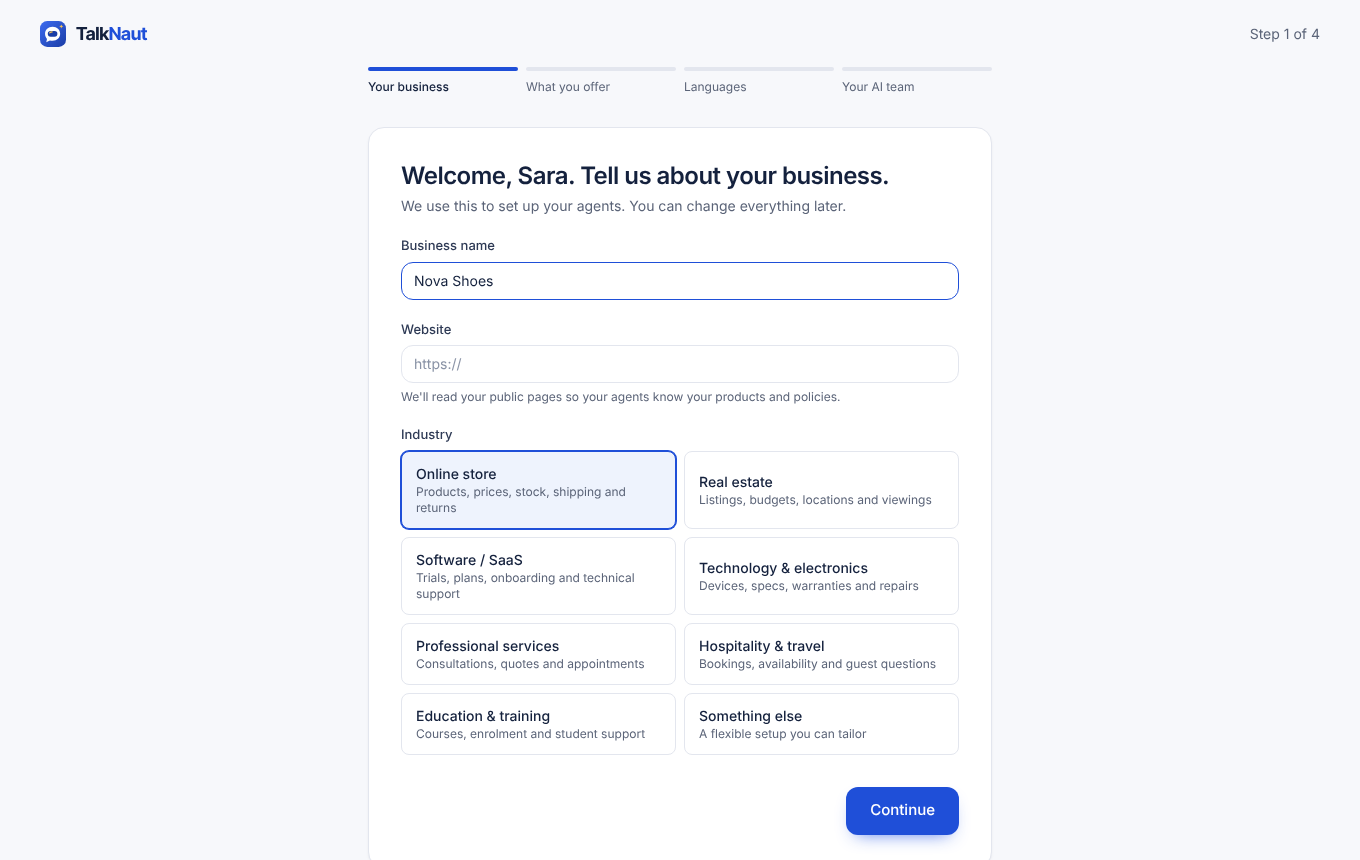
- 2
Describe what you sell
A few lines about your products or services, prices and delivery. You can add much more later in Knowledge.
talknaut.com/onboarding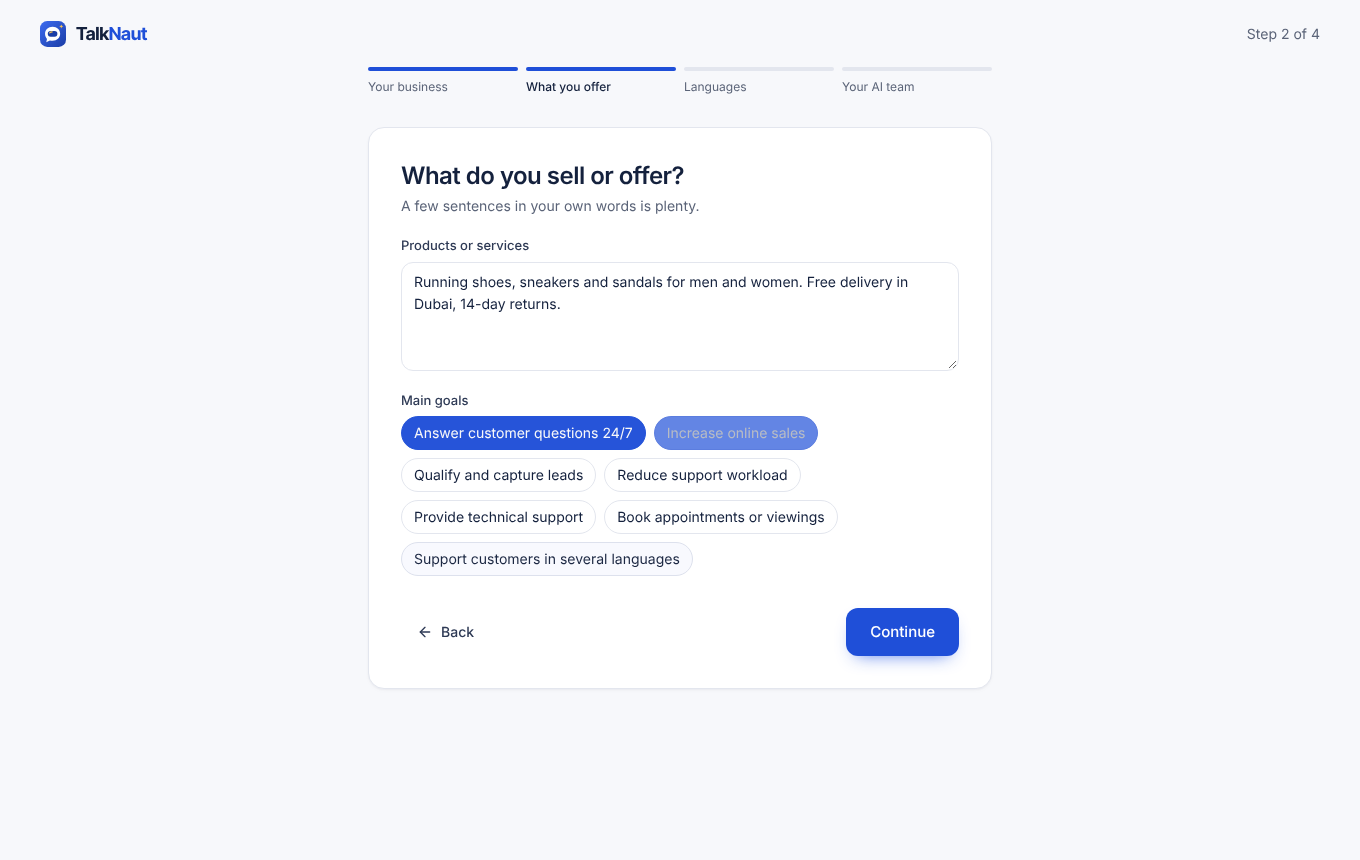
- 3
Pick the languages your customers use
Agents always answer in the customer’s language. If a customer writes in a language you didn’t pick, the agent can hand the chat to a teammate who speaks it (see Languages and transfers).
talknaut.com/onboarding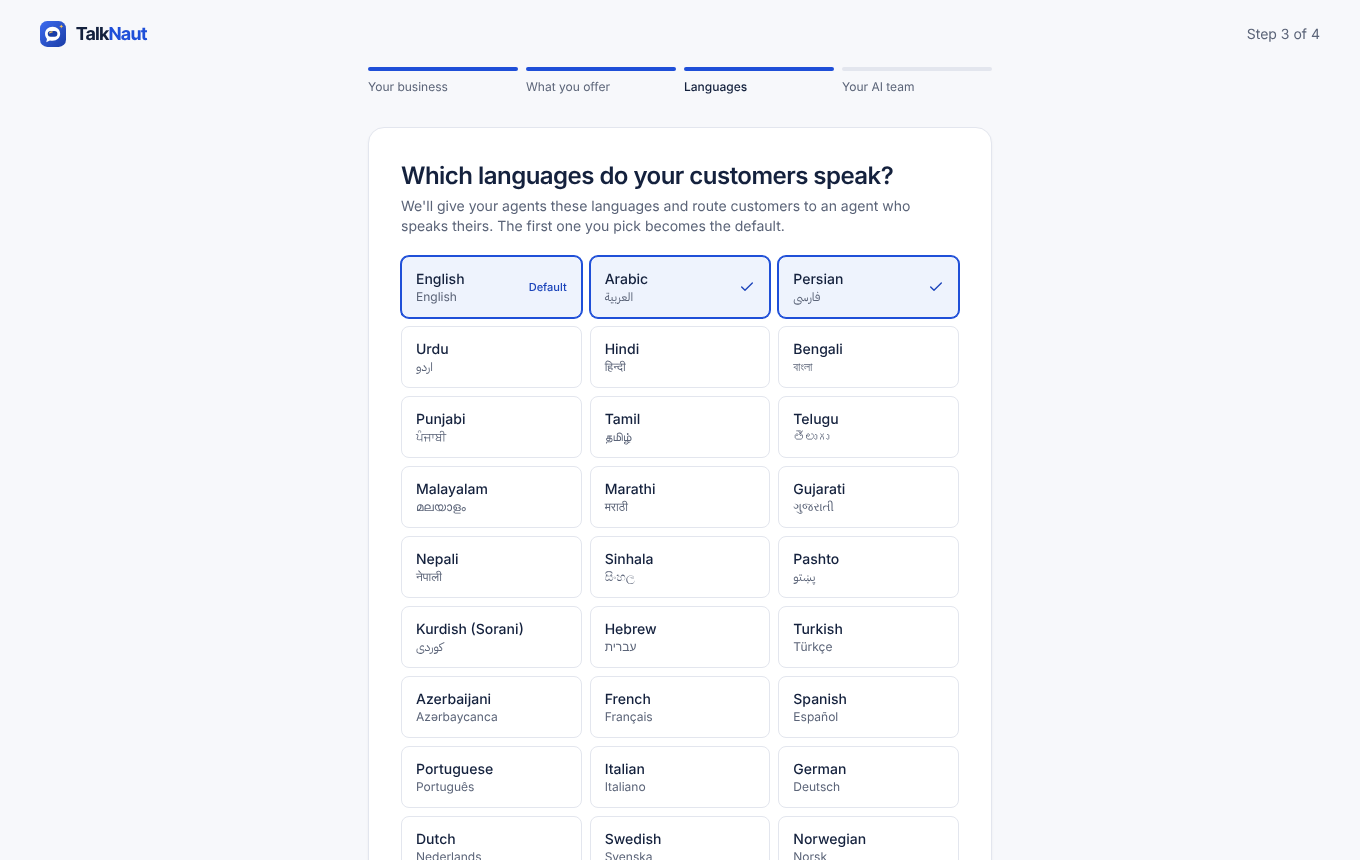
- 4
Meet your starting team
TalkNaut suggests agents for your business. Keep them, rename them or remove them. Nothing answers customers until you connect an app.
talknaut.com/onboarding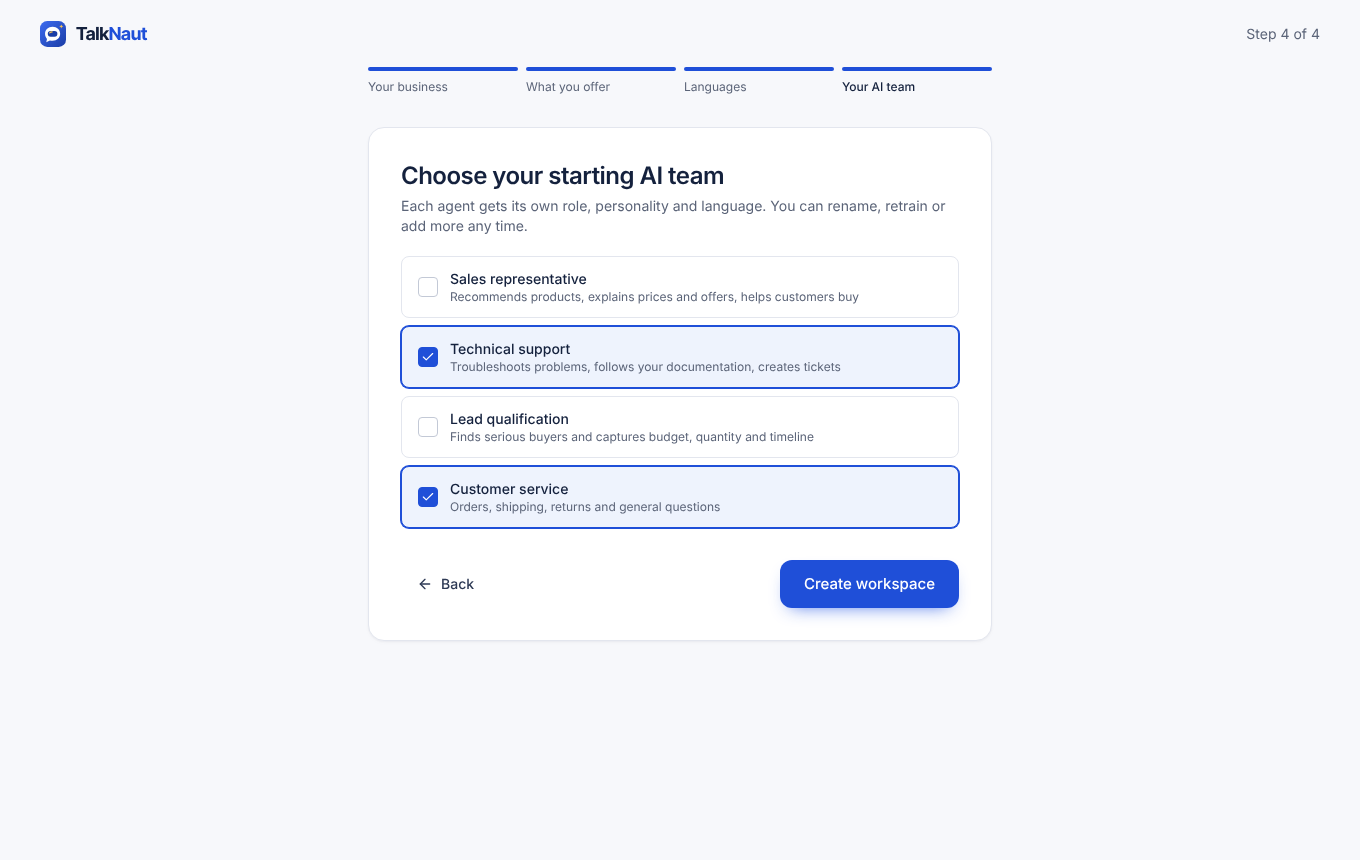
- 5
Follow the checklist on Home
Home shows what’s left: connect an app, teach your agents, test them. Each item opens the right page.
talknaut.com/app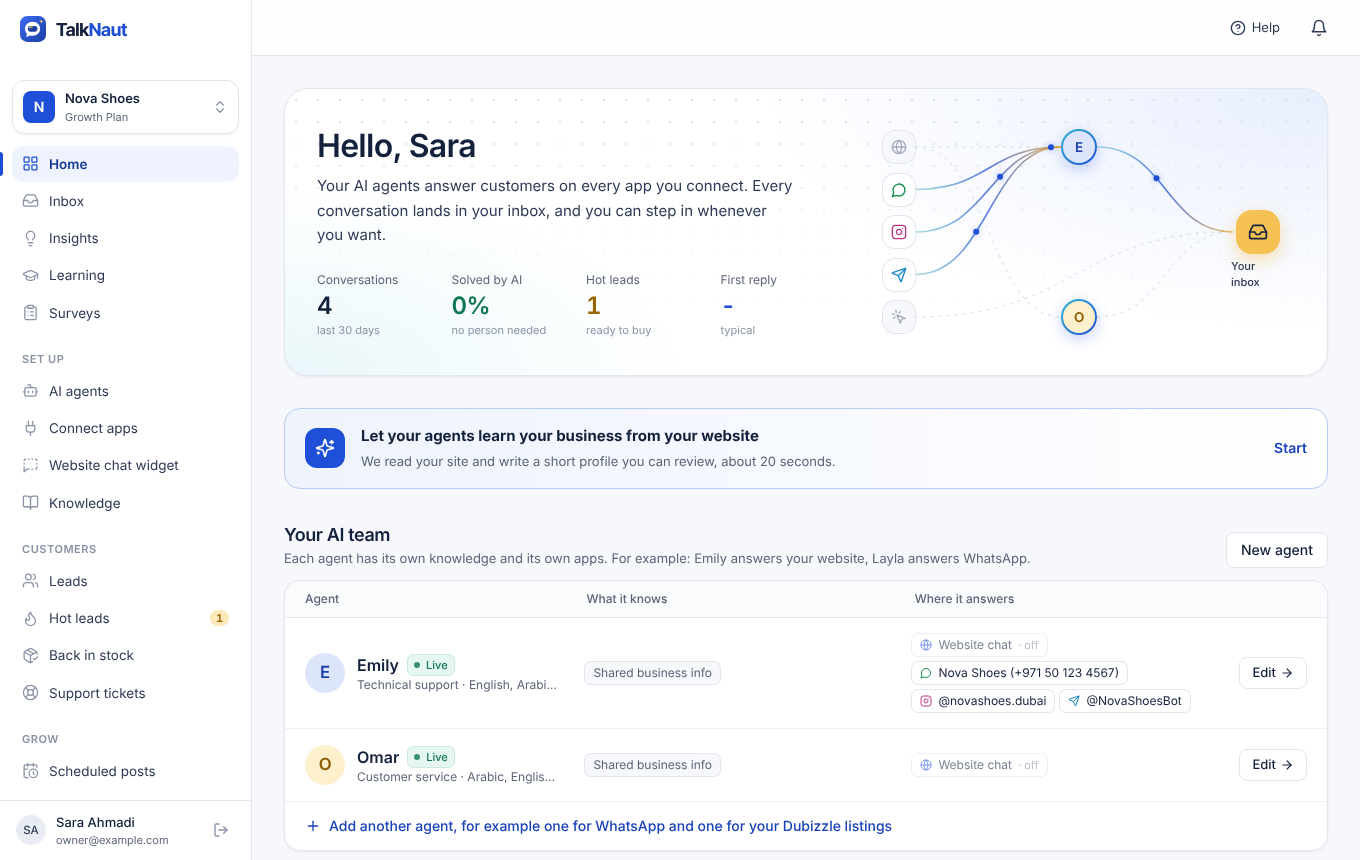
Where everything is
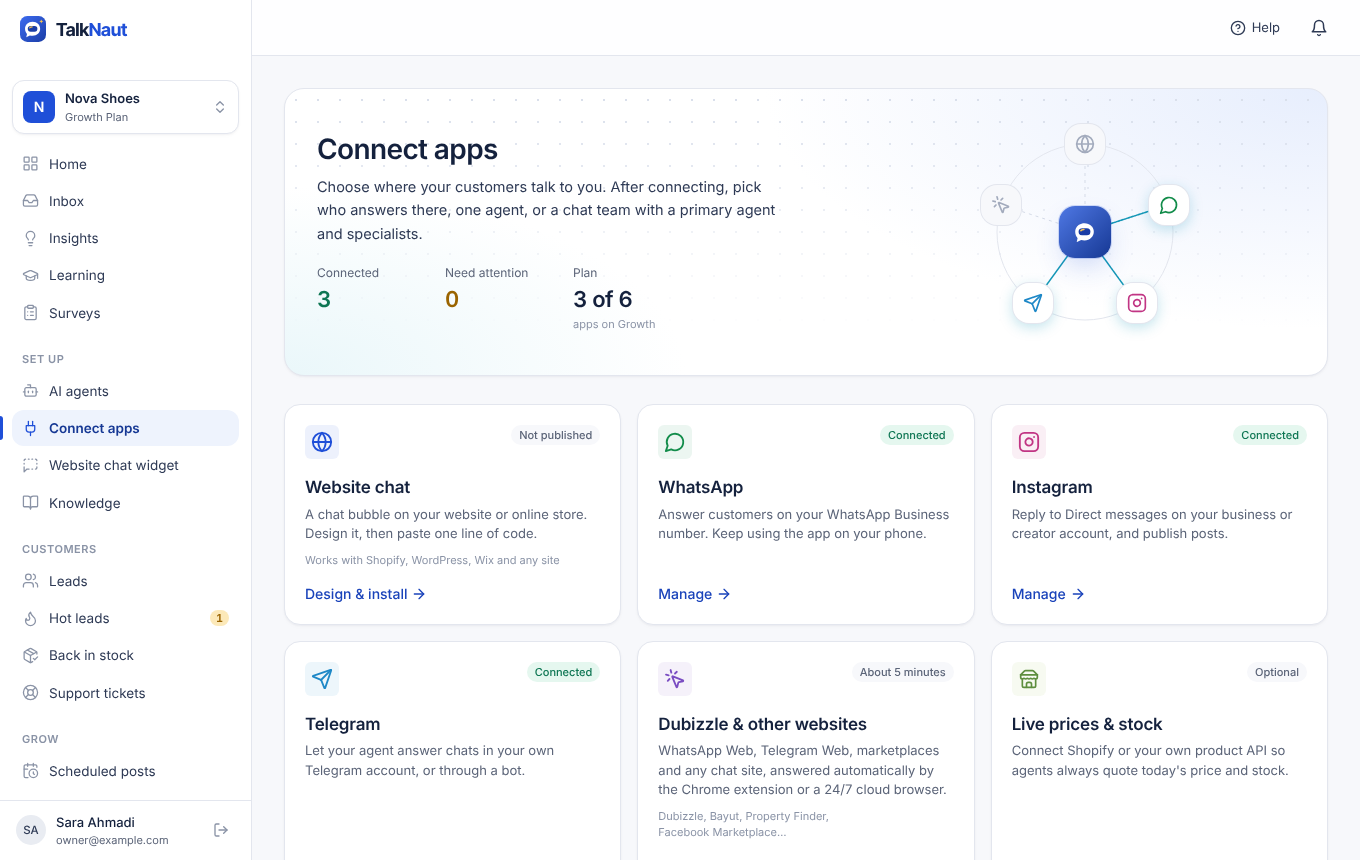
On a phone, tap the menu icon at the top to open the menu.
The best order to set things up
- Teach your agents: paste your website and price list.
- Test an agent in the dashboard and fix anything it gets wrong.
- Connect one app: website chat is the fastest, WhatsApp usually brings the most chats.
- Not ready to let AI answer yet? Turn on listen-only mode first.
- Invite your team in Team.
Common problems
Something not working? Find your message below.
I didn’t get the confirmation email
It says “Too many attempts” when I log in
It says my password is too easy
Blue-Shoes-Every-Friday.